
Canon PIXMA TR7120
4.3Editor score
Affordable versatile performance
Compact stylish design
Dual-band Wi-Fi support
Choosing the right All in One Printer for MacBook Air requires careful consideration of compatibility, quality, and seamless connectivity. These devices must integrate effortlessly with macOS to provide reliable printing without frustrating setup processes.
We compared leading models based on their wireless capabilities, print resolution, and ease of use with Apple devices. Each product was evaluated for its ability to handle everyday tasks while maintaining high standards of performance and efficiency.
This guide reveals the top picks with detailed insights into their strengths and weaknesses. Keep in mind that prices and availability can change quickly, so always check current listings before making your final decision.
4.3Editor score

3.9Editor score
4.0Editor score
As an Amazon Associate we earn from qualifying purchases.
This side-by-side comparison highlights the key specifications and capabilities of the top ten models available for Mac users.




The HP OfficeJet Pro 8125 stands out as a robust all-in-one solution designed for home office environments. With a rating of 3.9 stars, it offers a balance of speed and functionality that appeals to busy Mac users looking for efficiency.
We may earn a commission when you buy through this link, at no additional cost to you.
Its standout quality lies in the HP AI feature that optimizes print formatting automatically. This ensures that web pages and emails print cleanly without wasted paper. The dual-band Wi-Fi also provides stable connectivity which is crucial for seamless MacBook Air integration.
However, some users have reported intermittent connectivity issues depending on their network setup. Additionally, the instant ink trial requires a subscription afterward which may not suit everyone. These trade-offs are acceptable for the speed and quality it delivers daily.
This printer is ideal for users who need professional-quality color documents and fast output. If you value automated formatting and reliable security features this model should be top of your list for Mac compatibility.
HP AI removes unwanted content from web pages ensuring your prints look professional without extra effort.
Dual-band Wi-Fi and HP Wolf Essential Security keep your network protected and your prints flowing smoothly.
We may earn a commission when you buy through this link, at no additional cost to you.
The Epson EcoTank ET-2903 offers exceptional value with its included ink supply that can last up to three years. Rated at 4.3 stars, this printer is perfect for users who want to avoid frequent cartridge replacements.
We may earn a commission when you buy through this link, at no additional cost to you.
Its key strength is the refillable tank system that eliminates the need for individual cartridges. This design significantly reduces plastic waste and lowers long-term costs. The heat-free technology also ensures the printhead lasts the life of the printer.
While the upfront cost is higher than many competitors the savings over time are substantial. The slower print speed might be a drawback for large batches but it is acceptable for most home users prioritizing convenience.
This model is best for those who print frequently and want a sustainable solution. If you prefer refillable tanks and long-term savings this printer is a smart investment for your Mac setup.
The refillable tanks reduce waste and save money by eliminating the need for individual cartridges.
Heat-free technology protects the printhead ensuring long-lasting reliability and consistent print quality.
We may earn a commission when you buy through this link, at no additional cost to you.
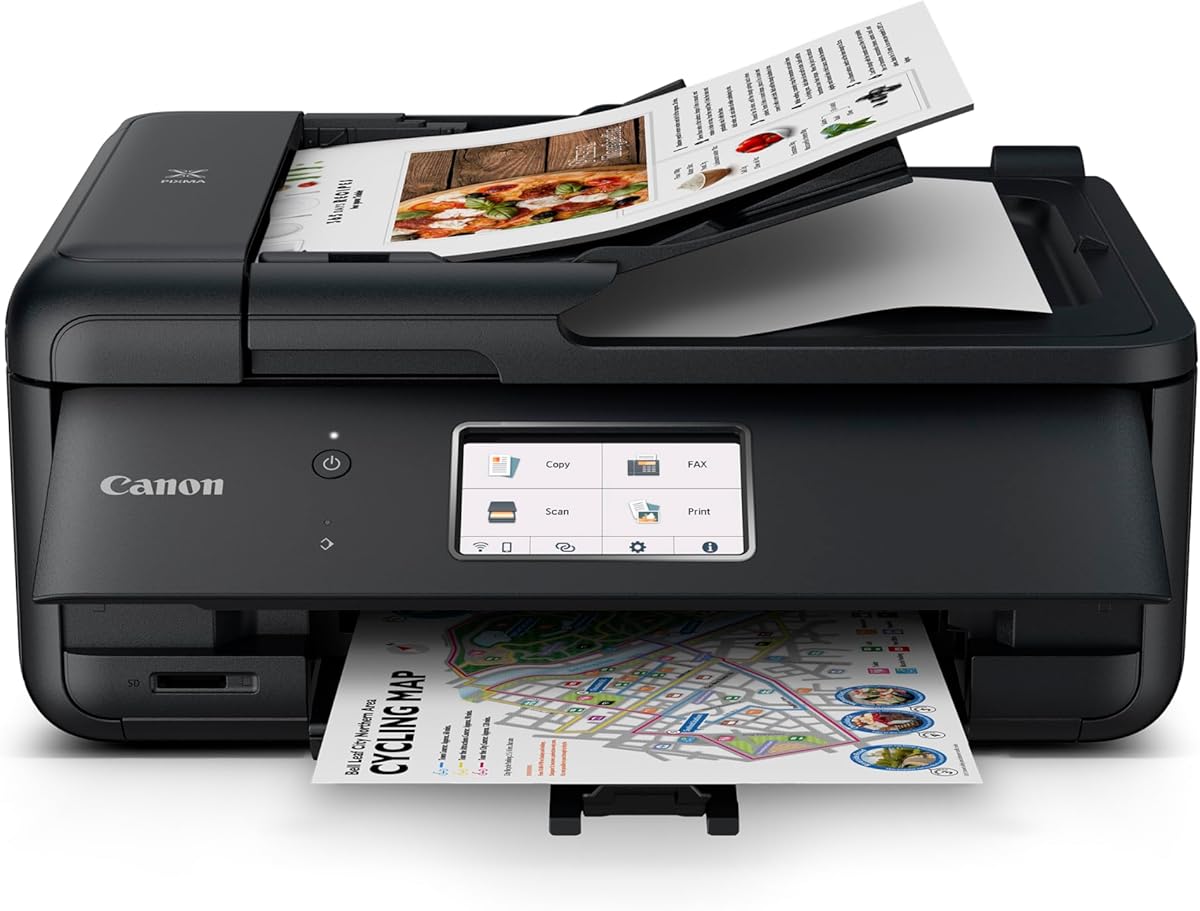
The Canon PIXMA TR7120 is an affordable versatile option that fits well in any home office. With a rating of 4.3 stars, it provides reliable performance without a high price tag making it ideal for budget-conscious users.
We may earn a commission when you buy through this link, at no additional cost to you.
Its compact design saves space while still delivering crisp vibrant prints thanks to its hybrid ink system. The dual-band Wi-Fi ensures stable connections with your MacBook Air and the OLED display makes monitoring ink levels simple.
While it lacks a dedicated fax feature the all-in-one functions cover most daily needs. The paper capacity is modest but sufficient for light to moderate use. These trade-offs are minor given its price point and ease of use.
This printer is perfect for students or small home offices needing essential functions. If you want a stylish and affordable device that handles printing scanning and copying efficiently this is a top choice.
Its small footprint complements any workspace without sacrificing functionality or print quality.
Dual-band Wi-Fi ensures stable and consistent connections with your MacBook Air and other devices.
We may earn a commission when you buy through this link, at no additional cost to you.
The Canon PIXMA TS6520 is designed for users who need a compact yet capable printer for their desk. It holds a 4.2-star rating and is perfect for smaller spaces where footprint matters as much as functionality.
We may earn a commission when you buy through this link, at no additional cost to you.
Its OLED display offers an intuitive interface for monitoring settings and ink levels. The hybrid ink system delivers sharp text and vivid colors ensuring high-quality output for both documents and photos.
The lack of an auto document feeder means multi-page tasks require manual handling. While this limits productivity slightly it is acceptable for occasional use. The compact design and vibrant print quality make up for this limitation.
This model is ideal for users with limited desk space. If you need a sleek printer that supports Airprint and delivers excellent quality this is a strong contender.
The OLED screen allows you to easily monitor ink levels and adjust settings at a glance.
Its hybrid ink system delivers sharp text and vivid colors for both documents and photos.
We may earn a commission when you buy through this link, at no additional cost to you.
The Brother Work Smart 1360 offers a range of features tailored for home office users who prioritize cloud connectivity. With a rating of 3.8 stars, it provides solid performance for everyday tasks without breaking the bank.
We may earn a commission when you buy through this link, at no additional cost to you.
Its standout feature is the ability to connect to popular cloud apps like Google Drive and Dropbox directly. This simplifies printing documents stored online without needing to download them first to your Mac.
While the overall rating is lower than some competitors the fast black print speed is impressive. The limitations are acceptable for users focused on affordability and cloud integration rather than premium features.
This printer is well-suited for those who work from home and rely on cloud storage. If you want easy cloud connections and quick black prints this model is a practical choice.
Connect directly to popular cloud apps like Google Drive and Dropbox for streamlined document access.
With speeds up to 16 ppm black this printer handles text documents quickly and efficiently.
We may earn a commission when you buy through this link, at no additional cost to you.
The HP Envy 6155 is designed to handle high-quality color documents and photos for home use. It has a 4.2-star rating and delivers vibrant prints that look great on screen.
We may earn a commission when you buy through this link, at no additional cost to you.
Its true-to-screen technology ensures colors match what you see on your Mac. The large touchscreen provides smooth navigation and the instant ink trial helps keep you printing smoothly at first.
Dependency on the HP app for some features may be inconvenient for some users. The subscription requirement after the trial is a common trade-off for convenience. These issues are minor compared to the print quality.
This printer is ideal for home users who need reliable color prints and easy navigation. If you value vibrant photos and a simple interface this is a great choice.
Print documents and photos that look as vibrant as they do on your screen with HP technology.
The 2.4-inch touchscreen makes navigating settings and tasks smooth and user-friendly.
We may earn a commission when you buy through this link, at no additional cost to you.
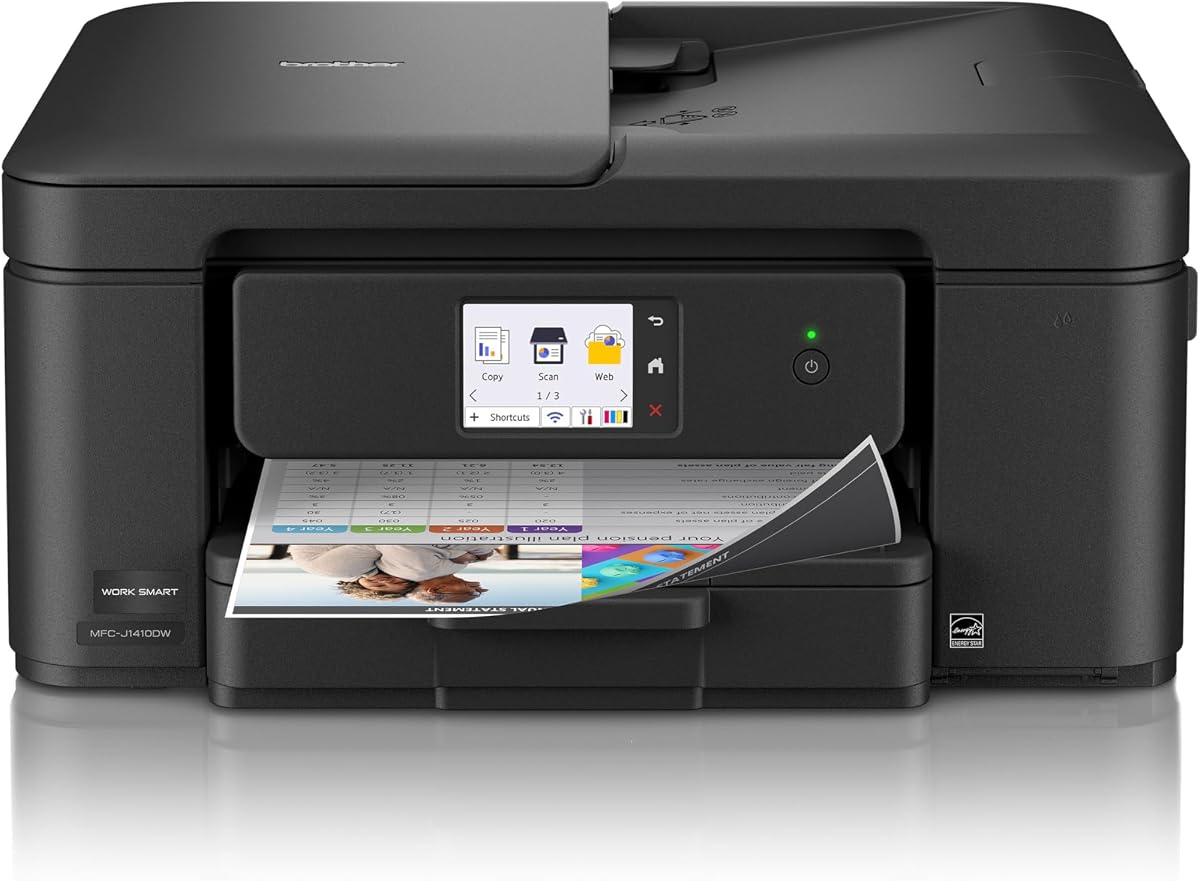
The Brother Work Smart 1410 features a large touchscreen that simplifies navigation for all users. With a 4.0-star rating, it offers quick setup and reliable performance for home and small office environments.
We may earn a commission when you buy through this link, at no additional cost to you.
The 2.7-inch color display makes it easy to manage tasks directly on the printer. Integration with cloud apps and the mobile connect app adds convenience for remote printing and device management.
While the refresh subscription trial is helpful it expires after a short period. The basic feature set might lack advanced options but covers most everyday needs well. These are acceptable trade-offs for the ease of use.
This printer is best for users who prefer large touchscreens and cloud connectivity. If you want an intuitive interface and quick setup this model is a solid option.
The clear color display makes navigation and task management easy for all users.
Seamlessly integrate with popular cloud apps for printing and scanning documents remotely.
We may earn a commission when you buy through this link, at no additional cost to you.
The HP OfficeJet 3830 stands out for its compatibility with voice assistants like Alexa. With a 4.3-star rating, it is a reliable choice for those who want to control printing through voice commands.
We may earn a commission when you buy through this link, at no additional cost to you.
Its instant ink ready feature ensures you never run out of ink unexpectedly. The quiet mode keeps noise levels low which is great for shared home offices. Wireless printing allows for flexibility from any device.
The lack of an auto document feeder limits scanning of multi-page documents. While it is an older model it still delivers solid performance for basic needs. These trade-offs are acceptable for its convenience features.
This printer is perfect for users who value voice control and instant ink. If you want simple wireless printing and low noise operation this is a strong choice.
Control your printer with voice commands using Alexa for a hands-free experience.
Instant ink ready ensures you never run out of ink unexpectedly with automatic delivery.
We may earn a commission when you buy through this link, at no additional cost to you.
The Canon PIXMA TR8620a is a premium choice offering advanced features like Alexa smart reorders and high capacity paper handling. With a 4.0-star rating, it is designed for serious home office users.
We may earn a commission when you buy through this link, at no additional cost to you.
Its ability to connect with Alexa means it can reorder ink automatically when running low. The 200-sheet capacity reduces reloading interruptions and the 15 ipm speed keeps workflow efficient.
While the higher price reflects its advanced features it may not be necessary for casual users. The setup process can be complex but offers extensive functionality once completed. These trade-offs are acceptable for power users.
This printer is best for users who need fax and high capacity paper handling. If you want seamless ink management and fast performance this is a top premium option.
Alexa can place smart reorders for you when ink levels are low ensuring you never stop printing.
The 200-sheet capacity reduces frequent reloading and keeps your workflow efficient.
We may earn a commission when you buy through this link, at no additional cost to you.
The Canon PIXMA TR4720 is an affordable option that includes a built-in fax feature and auto document feeder. With a 3.9-star rating, it offers practical functions for home use without a high cost.
We may earn a commission when you buy through this link, at no additional cost to you.
Its built-in fax allows you to send and receive documents directly. The smart reorder feature with Alexa helps ensure you never run out of supplies unexpectedly. The auto document feeder simplifies scanning multi-page files.
Print speeds are slower than some competitors which may impact large batches. The limited advanced features make it a basic choice but it covers essential needs. These are acceptable trade-offs for the price.
This printer is best for users who need fax functionality on a budget. If you want basic all-in-one tasks with helpful smart features this is a practical choice.
Send and receive documents directly with the built-in fax feature for home office use.
Connect to Alexa for smart reorders ensuring you always have enough ink on hand.
We may earn a commission when you buy through this link, at no additional cost to you.
Selecting the right printer for your MacBook Air involves evaluating several factors to ensure seamless integration and performance.
Wireless connectivity is essential for modern setups. Look for dual-band Wi-Fi support and Apple AirPrint compatibility to ensure your MacBook Air can communicate with the printer without complex drivers or cabling.
Prioritize models with dual-band support to avoid interference and ensure stable connections across your home network.
Consider how fast you need to print. Most home printers offer speeds between 10 and 20 pages per minute. For documents look for higher black text speeds while photos require resolution support for crisp output.
Balance speed with quality based on whether you need quick business documents or detailed photo prints.
Paper capacity and feeding systems impact convenience. A larger input tray reduces frequent refills while an auto document feeder simplifies scanning multi-page files. Ensure the printer supports standard paper sizes you use.
Choose models with automatic feeders and sufficient capacity to streamline your workflow.
Mobile printing capabilities allow you to print directly from your devices. Verify that the printer supports the manufacturer's app and AirPrint to ensure you can print from anywhere in your home.
Confirm app compatibility and ease of use to avoid frustration during daily tasks.
Ink efficiency is a critical cost factor. Look for refillable tank systems or subscription plans that reduce long-term costs. Consider the cost per page rather than just the initial purchase price.
Prioritize tank systems or subscription options to save money over time.
The physical footprint of the printer matters especially for small spaces. Compact designs with minimal noise output fit better in home offices and living areas without being obtrusive.
Choose a size that matches your workspace and noise preferences for a clean setup.
An all-in-one printer should handle scanning copying and faxing effectively. Ensure all functions meet your needs so you do not need additional devices for complete document management.
Select a model that covers all required functions to simplify your office setup.
Printer security protects your data during transmission. Look for built-in encryption or security features to safeguard sensitive documents when printing over a network.
Choose devices with security features to protect your personal and business information.
First, ensure your MacBook Air and printer are on the same Wi-Fi network. Open System Preferences on your Mac and select Printers & Scanners to add the device. Follow the on-screen prompts to complete setup using the manufacturer's app if required.
Second, load paper into the input tray carefully ensuring guides are adjusted to prevent jams. Use the touch panel or mobile app to select print tasks and adjust settings like duplex printing or paper type for optimal results.
Third, clean the print heads regularly through the printer's maintenance settings. Keep the exterior dust-free and avoid placing the printer in direct sunlight to maintain performance and extend its lifespan.
Yes all printers listed support Apple AirPrint and macOS drivers. This ensures seamless integration with your MacBook Air without needing complex installations. Check the specific model page for the latest driver updates to maintain compatibility.
The HP Envy 6155 and Canon PIXMA TR8620a excel in photo printing with high-resolution outputs. They use specialized ink systems that produce vibrant colors and sharp details ideal for borderless photo prints.
Choose models with refillable tanks or subscription plans like HP Instant Ink. Refillable tanks reduce waste and long-term costs significantly. Subscriptions deliver ink automatically and offer discounts based on your printing volume.
Yes all these printers support scanning directly to your Mac via AirScan or manufacturer apps. You can select scan-to-computer in settings to save documents directly to your desktop or documents folder.
Duplex printing means printing on both sides of a sheet of paper automatically. This feature saves paper and time while reducing waste. It is available on most models listed and helps lower long-term costs.
Yes all printers support mobile printing through their dedicated apps and AirPrint. You can print from your iPhone iPad or MacBook Air easily. Some models also support Android devices via Mopria services.
The Canon PIXMA TR8620a offers the largest capacity with a 200-sheet input tray. This reduces how often you need to reload paper. It is ideal for busy home offices with frequent printing needs.
Yes several models like the HP OfficeJet 3830 and Canon PIXMA TR8620a support Alexa. You can use voice commands to check ink levels or reorder supplies. This adds convenience for hands-free operation at home.
We have explored the top ten printers available for MacBook Air users covering a range of needs from budget to premium. The HP OfficeJet Pro 8125 and Canon PIXMA TR7120 stand out for overall value and affordability respectively.
When choosing prioritize factors like wireless connectivity and ink efficiency to match your daily workflow. Consider how much you print and whether features like fax or voice control are essential for your environment.
Keep in mind that prices and promotions change frequently so verify current offers before buying. With the right model you can enjoy seamless printing and professional-quality results from your MacBook Air setup.